How to Use a Digital Planner: The Ultimate Step-by-Step Guide for Beginners
Learn how to use a digital planner without frustration with this comprehensive step-by-step beginner guide for all operating systems.
Heather Middleton
October 16, 2026
How to Use a Digital Planner: The Ultimate Step-by-Step Guide for Beginners
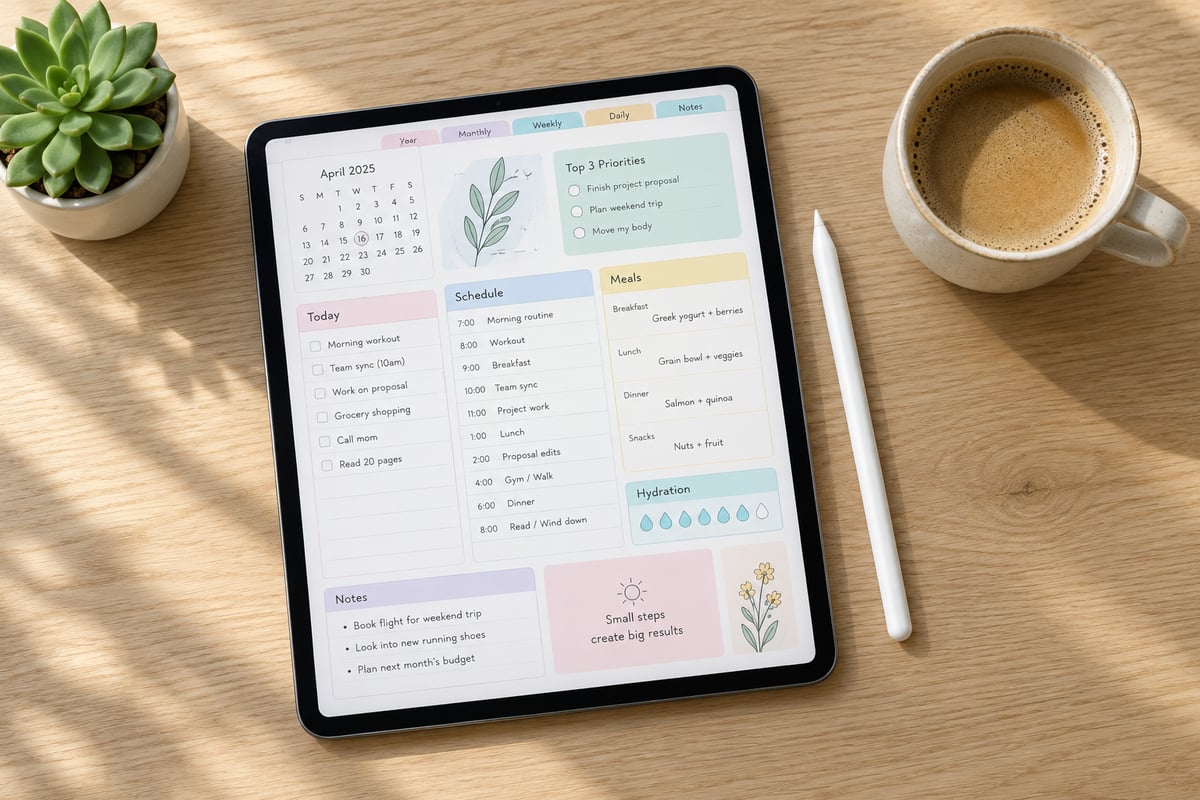
You bought a beautiful digital planner, downloaded the PDF, and... nothing clicks. The tabs won't move, and you are already feeling more stressed than organized. If you are wondering how to use a digital planner without throwing your tablet across the room, you are not alone.
Digital planning promises to declutter your life, but transitioning from physical paper to a tablet can be surprisingly frustrating. Most online guides assume you are an iPad pro using GoodNotes, leaving Android, Windows, and Chromebook users behind while ignoring the basic technical hurdles beginners face.
Here at SelfLoveJourney33, we believe organization shouldn't be stressful. This comprehensive digital planner guide will demystify how to use a digital planner across all major operating systems, troubleshoot common setup hurdles like Read-Only Mode, and show you how to turn digital journaling into a mindful tool for self-love and balanced productivity.
What is a Digital Planner and How Does It Work?
At its core, a digital planner is an interactive PDF document designed to mimic the look, feel, and functionality of a traditional paper binder. However, unlike a static document or a simple scan, a high-quality digital planner is built with embedded hyperlinks.
These hyperlinks are mapped to specific design elements—such as side tabs, index pages, weekly logs, and monthly calendars. When you tap a tab with your digital stylus or finger, the app instantly navigates to that exact page. This allows you to jump from a yearly overview to a daily schedule in a fraction of a second, eliminating the need to swipe through hundreds of individual pages.
[Yearly Overview] ──(Click Tab)──> [Specific Month] ──(Click Date)──> [Daily Schedule & Reflection]
At SelfLoveJourney33, we also design hybrid formats. This means you can take a beautifully illustrated printable journal and import it into your favorite digital note-taking app, blending the tactile charm of hand-drawn art with the flexibility of modern technology.
Aesthetic vs. Authenticity: Rejecting the "Pinterest-Perfect" Pressure
If you search for digital planning online, you will find an endless sea of hyper-curated, visually flawless pages. It is easy to feel intimidated by these setups, but here is our contrarian take: your digital planner should reflect your real, messy, beautiful life, not a perfect Pinterest aesthetic.
A personalized digital layout is about reflecting your inner world and finding mental clarity, not chasing social media views. Whether your aesthetic leans toward cottagecore, witchy designs, botanical art, or minimalist layouts, the goal is to create a digital sanctuary that serves your daily needs and supports your mental health.
Choosing Your Setup: Apps and Devices for iPad, Android, and Windows
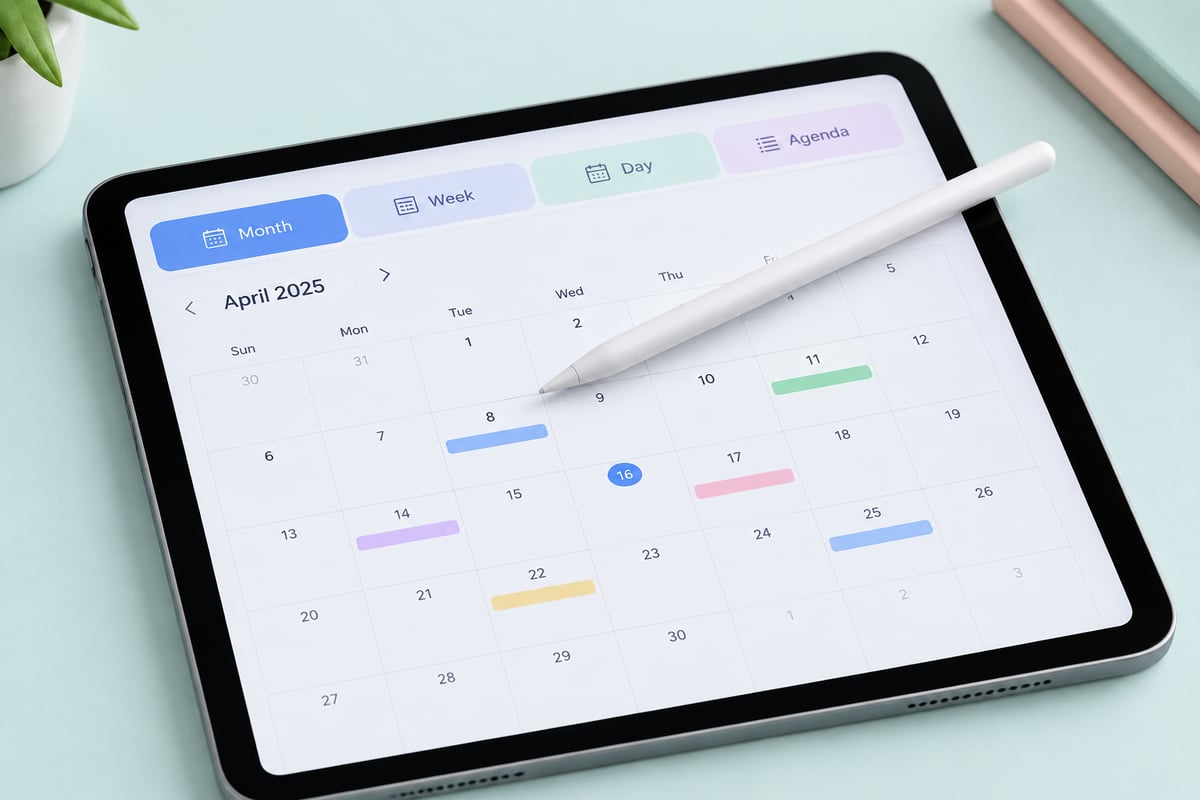
To start your digital planning journey, you do not need the most expensive tablet or stylus on the market. Any device that supports digital writing or typing can become your new organization hub. Below is a breakdown of the best apps for every major ecosystem.
| Operating System | Recommended Apps | Key Features | Stylus Support |
|---|---|---|---|
| iOS / iPadOS | GoodNotes, Notability, CollaNote | Superior handwriting search, smooth rendering, lasso tool | Apple Pencil, Logitech Crayon |
| Android | Penly, Noteshelf, TouchNotes | Built-in planner creation, extensive hyperlink support | Samsung S-Pen, Generic Active Stylus |
| Windows / ChromeOS | Xodo, Drawboard PDF, OneNote | Cross-platform syncing, robust PDF markup tools | Surface Pen, USI Stylus, Keyboard |
iOS/iPadOS Options
- GoodNotes: The gold standard for how to use digital planner on iPad setups. It offers incredible organization folders, custom pen strokes, and effortless hyperlink navigation.
- Notability: Excellent if you prefer a continuous vertical scroll rather than a traditional book-like horizontal flip, alongside integrated audio recording features.
Android Options
- Penly: Designed specifically with digital planning in mind. It comes pre-loaded with digital planners and offers robust functionality for importing custom sticker sheets.
- Noteshelf: A beautifully designed alternative with natural writing fluid dynamics and excellent support for pressure-sensitive styluses like the Samsung S-Pen.
Windows & Chromebook Options
- Xodo: A powerful, free-to-use PDF editor that handles heavy, hyperlinked planner files without lagging.
- Drawboard PDF: Popular among professionals for its precise architectural-grade ink markup engine, making it incredibly satisfying for hand-drawn bullet journaling.
Keep in mind that while digital planners offer incredible flexibility, screens, styluses, and app versions can affect the finished look and responsiveness. Start with what you have, and upgrade your tools only when you know what fits your daily workflow.
Step-by-Step: How to Download, Import, and Open Your Planner
Getting your new file onto your device can feel like a tech-heavy barrier, especially when dealing with zipped files or cloud storage drives. Follow these straightforward steps to import your selflovejourney33 digital journal or planner.
[Purchase/Download PDF] ──> [Save to Files/Cloud] ──> [Open App] ──> [Import Document]
Step 1: Download Your Files
When you purchase a digital planner or a downloadable printable journal from a marketplace like Etsy, you will typically receive a PDF file or a .zip folder.
- Always download the files using a web browser (like Safari, Chrome, or Firefox) rather than the marketplace's mobile app, as mobile apps often restrict direct file downloads.
- Save the file directly to your device's local storage (e.g., "On My iPad" or "Downloads" folder) or to a cloud service like Google Drive, Dropbox, or iCloud.
Step 2: Unzip If Necessary
If your purchase came in a zipped folder (often used to group planners, user guides, and digital sticker sheets together):
- On iOS: Open the Files app, navigate to your download, and simply tap the
.zipfile. It will automatically extract into a regular folder. - On Android: Open your native file manager app, tap the
.zipfile, and select "Extract."
Step 3: Import into Your Annotation App
Open your chosen note-taking app and import the PDF:
- In GoodNotes: Tap the + (New) icon in your document library and select Import. Navigate to where you saved your planner PDF and select it.
- In Penly / Noteshelf: Tap the add document button, browse your local drive, and upload the file.
Step 4: Mind Your Aspect Ratios
When choosing a file format, pay attention to the page orientation and aspect ratio. Most planners are optimized for a 4:3 iPad screen or a 16:9 widescreen Android tablet. If you intend to print sections of your digital planner later, check out our tips below on the printable-to-digital hybrid hack to avoid awkward page margins.
The #1 Digital Planning Frustration: Solving the "Non-Clickable Links" Issue
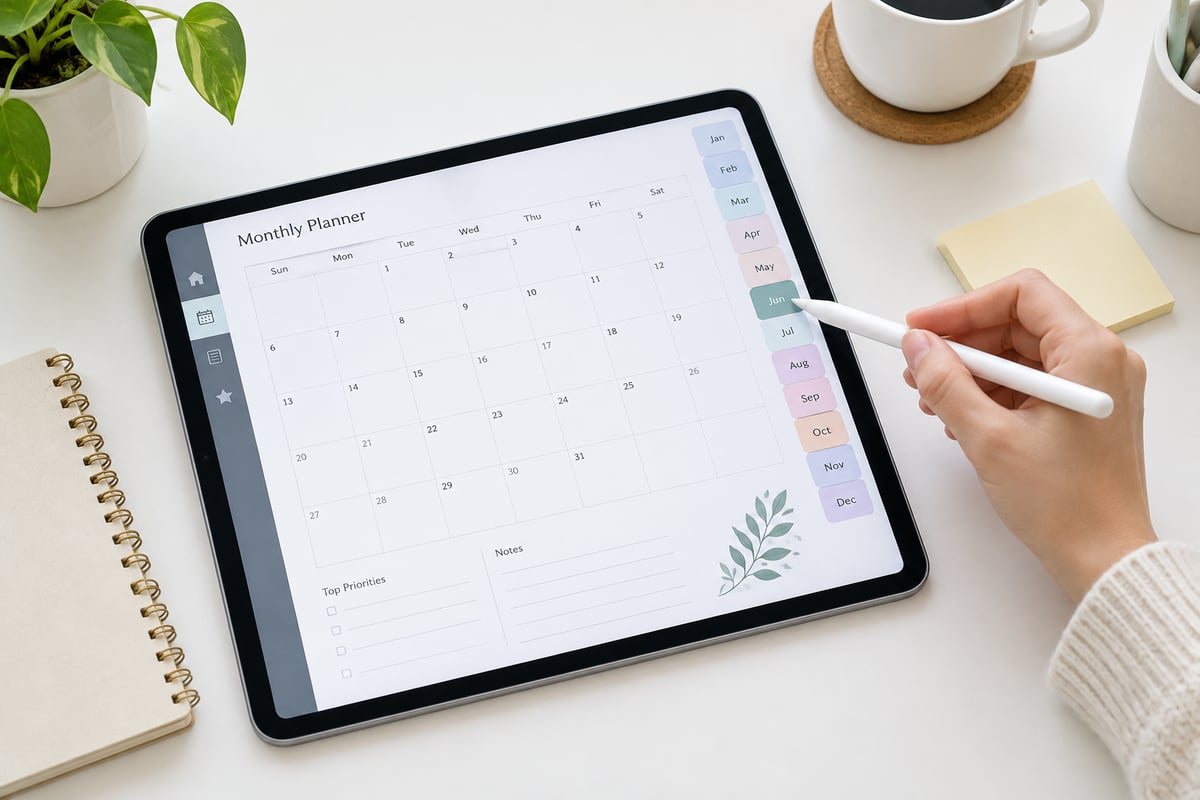
The single most common email we receive from beginners is: "The tabs on my planner aren't working! Did I get a broken file?"
Ninety-nine percent of the time, the file is perfectly fine. The issue is a built-in safety feature of digital note-taking apps called Read-Only Mode (or Link Mode). Understanding how to toggle this mode is the most important lesson in any digital planner guide.
To prevent you from accidentally triggering a hyperlink and jumping pages while you are trying to write, annotation apps divide their workspaces into two distinct modes:
                      ┌────────────────────────────────────────┐
                      │          Which Mode Are You In?        │
                      └───────────────────┬────────────────────┘
                                          │
                  ┌───────────────────────┴───────────────────────┐
                  ▼                                               ▼
         [Read-Only / Link Mode]                         [Editing / Writing Mode]
   - Links and tabs are ACTIVE                     - Stylus and keyboard are ACTIVE
   - Tap tabs to navigate pages                    - Links and tabs are INACTIVE
   - Pen tool is hidden                            - Write, highlight, and erase
How to Toggle Modes in Major Apps:
- GoodNotes: Look at the top right corner of the screen. You will see an icon of a pen with a line drawn through it (or a pen with a lasso circle). Tap this icon. When the toolbar turns blue and the pen tools appear, you are in Writing Mode (links are disabled). Tap it again to make the toolbar turn white; you are now in Read-Only Mode (links are active).
- Notability: Tap the Hand Tool (or navigation icon) in the top menu bar to click links. Tap the Pen Tool or Highlighter to write.
- Xodo / Drawboard: Look for the "Pan" or "Select" tool (usually a hand icon). When active, you can use the hyperlinked tabs freely.
If you are stuck, perform this quick troubleshooting checklist:
- Is the writing pen tool currently selected? (If yes, your links will not work).
- Have you tried tapping with your bare finger instead of your stylus? (Some apps restrict stylus actions to drawing only).
- Did you flatten or compress the PDF while exporting? (Ensure you import the raw PDF file directly into your application).
Daily Planner Organization: Merging Hustle Culture with Mindful Self-Care
Traditional productivity tips often push a hyper-rigid, corporate scheduling method. We are taught to pack every hour with tasks, track every minute of our working day, and treat rest as a reward rather than a human necessity. This "hustle culture" mentality frequently leads directly to burnout, anxiety, and feelings of inadequacy.
We believe in a different approach to daily planner organization. Your planner shouldn't be a strict taskmaster; it should be a mindful companion that helps you navigate your daily responsibilities while preserving space for emotional wellness, mood tracking, and self-care.
   Rigid Corporate Scheduling                Mindful Planning Ecosystem
┌───────────────────────────────┐         ┌───────────────────────────────┐
│ [08:00] Check Emails          │         │ [Gratitude Prompt]            │
│ [09:00] Client Call           │         │ "What brought me joy today?"  │
│ [10:00] Push Code             │         ├───────────────────────────────┤
│ [11:00] Review Metrics        │         │ [Top 3 Focus Tasks]           │
│ [12:00] Fast Lunch            │         │ 1. Complete work project      │
│ [13:00] Slide Deck Creation   │         │ 2. Mindful afternoon walk     │
│ [14:00] Team Alignment        │         │ 3. Hydrate & rest             │
│ [15:00] Budget Projections    │         ├───────────────────────────────┤
│ [16:00] Client Follow-up      │         │ [Mood Tracker]                │
│ [17:00] Plan Tomorrow         │         │ 😊 Balanced  😐 Tired  😔 Stressed│
└───────────────────────────────┘         └───────────────────────────────┘
The Science Behind Expressive Writing
Integrating emotional wellness check-ins, habit trackers, and self-reflection prompts into your daily planning isn't just a trend—it is backed by science.
- According to data gathered by the National Center for Health Statistics, tracking daily stressors can help individuals identify environmental triggers that exacerbate anxiety.
- The World Health Organization data on mental health and stress management highlights that proactive self-care practices significantly lower long-term chronic fatigue.
- A body of National Institutes of Health research on expressive writing shows that regular journaling about emotions and gratitude can strengthen immunological function, lower blood pressure, and improve cognitive processing.
Practical Tips for a Mindful Daily Routine
To bring balance to your daily schedule, try incorporating these gentle shifts:
- The Rule of Three: Instead of writing an endless, overwhelming to-do list, highlight only three major focus areas for the day. Everything else is a bonus.
- Add Daily Gratitude Prompts: Dedicate a small corner of your daily page to jot down one thing you are grateful for, no matter how small.
- Use Mood and Habit Trackers: Visualize how your physical and mental health align. If you notice your mood drops on days you skip hydration or sleep, you can adjust your habits without judgment.
- Embrace Blank Spaces: Do not feel the need to fill every hour of your digital layout. Leaving open blocks of time is an active statement of self-love and unstructured rest.
The Printable-to-Digital Hybrid Hack: Best of Both Worlds
If you love the flexibility of digital tools but crave the hand-drawn feel of artistic paper designs, you don't have to choose between them. One of the best-kept secrets in the planning community is the printable-to-digital hybrid hack.
You can take flat, high-resolution printable PDFs—like our cottagecore, witchy, botanical, or Christian art designs from our printable journal collection—and import them directly into your digital note-taking apps to use as custom background templates.
[Artistic Printable PDF] ──> [Import as Image/Background] ──> [Write Digitally with Stylus]
How to Use a Printable File Digitally:
- Import as a Template: Most apps allow you to add custom templates. In GoodNotes, go to Settings > Document Templates and upload your printable PDF. Now, you can create new pages using that design over and over again.
- Insert as an Image: If your printable came as a high-quality JPEG or PNG file, simply insert it as an image layer on a blank page in your planner app, stretch it to fill the screen, and lock it in place. You can now write over the design with your stylus.
Understanding the Tradeoffs: Digital vs. Physical Prints
We believe in giving you honest, transparent advice. While importing printable files into a digital app offers incredible cost-effectiveness and flexibility, there are clear tradeoffs to consider when using these files across physical and digital formats:
- Colors & Contrast: What looks vibrant on an backlit OLED tablet screen may appear slightly different when printed on home cardstock. This is because screens display colors using RGB light, while home printers use CMYK ink.
- Aspect Ratio Matching: Standard printable files are sized for US Letter (8.5” x 11”) or A4 paper. When imported into a digital screen with a 4:3 ratio, you may experience small white margins at the top or bottom of your page.
- Paper Weights and Texture: Writing with a plastic stylus tip on a glass screen lacks the tactile resistance of writing on thick, textured 120gsm paper. If you prefer a physical book, you will need to choose your home paper stock, printer settings, and binding styles with care.
Matching Your Aesthetic to Your Mood
Our home and our digital planning environments are extensions of our inner selves. Matching your digital theme to your current energy can be a deeply comforting practice.
- Botanical Prints: Ideal for spring, periods of personal growth, or when you need a calming, natural sanctuary to organize your thoughts.
- Cottagecore Decor: Perfect for slower, cozy seasons when you want to focus on domestic joy, baking, reading, and simple pleasures.
- Witchy & Celestial Designs: Great for goal-setting, tracking moon phases, manifesting intentions, and exploring self-reflection during transitions.
- Christian Art & Scripture Journals: Beautifully suited for daily devotionals, prayers, and centering your productivity around faith and gratitude.
Start Your Digital Planning Journey Today
Digital planning should reduce your daily stress, not add to it. By choosing the right platform-neutral app, understanding how to toggle your app's Read-Only Mode, and infusing self-love prompts alongside your daily schedule, you can design a custom digital sanctuary that supports both your productivity goals and your mental well-being.
Your planner doesn't have to be perfect, pristine, or identical to anyone else's. It only needs to serve you.
Ready to begin your mindful planning journey? Explore the beginner-friendly digital templates, artistic printable journal pages, and uplifting designs at SelfLoveJourney33 on Etsy today, and take your first step toward organized self-care!